1
Open Page settings for the ad Page
Switch into the Facebook Page that runs the ads, then open Settings. In the current Page layout, choose Followers and public content. Labels can still vary by account or rollout.

Moderation Assist does not cover ads. Here is what does, how to set it up, and where keyword lists break.
7 min read · Published Aug 7, 2026
The honest answer
Most advertisers set up the wrong Facebook filter for ads. They find Moderation Assist in the Professional Dashboard, add keywords and link rules, and assume paid comment sections are covered. Meta's own help notes say otherwise: Moderation Assist hides comments on your Page or profile. It does not hide comments on the ads you run.
That gap matters because ad comments are usually where the damage is. Cold audiences leave more spam, more competitor bait, and more hostile one-liners than organic followers do. A filter that only watches the Page feed leaves the expensive threads unprotected.
Below is the honest map of Meta's native Facebook filters for ads: what each tool covers, the click path for the ones that actually help, the complaints that come with keyword lists, and when you need something that classifies meaning instead of matching strings.
Method 1
Page-level keyword blocking is the native filter that does extend to comments on ads from that Page. Facebook lets you block up to 1,000 words, phrases, or emojis and automatically hides common variants such as plurals, misspellings, abbreviations, and versions that use numbers or symbols.
Switch into the Facebook Page that runs the ads, then open Settings. In the current Page layout, choose Followers and public content. Labels can still vary by account or rollout.
Open Hide comments containing certain words from your Page. You can type comma-separated phrases, paste a list, or use the Options menu to upload a CSV file.
Start with the spam you already see: “check my bio”, common scam phrases, and obvious junk. Do not spend the 1,000-keyword limit on obvious plurals or misspellings that Facebook already generates as variants. Keep competitor names in a review list until you have checked real comments.
Use Show Variations to inspect Facebook's gray suggested variants and remove redundant entries if offered. Save, then watch a live ad thread and confirm a matching comment hides on the ad, not only on an organic post.
Trade-off: automatic variants improve coverage, but the filter still matches text rather than meaning. “Is the free shipping promo back?” can trip the same keyword as “FREE IPHONE CLICK NOW”, and the worst competitor bait often contains none of your blocked words.
If you want a safer starter list before you paste phrases into Meta, use the free Meta ad comment filter builder.
Method 2
The Page profanity filter is the second native control that Meta documents as applying to ads from the Page. It hides comments that match Meta's profanity lists at the strength you choose.
Stay in Page settings under Privacy and safety or Content moderation, depending on what your account shows.
Choose a strength level if your account offers one (for example medium or strong). Meta's list covers common offensive language across multiple languages.
Profanity filtering and your custom keyword list are complementary. One catches general abuse; the other catches your brand-specific spam.
Strong filters catch false positives. Check the hidden or filtered comments view in Business Suite or your Page tools and unhide anything that should have stayed public.
Trade-off: profanity filters do almost nothing against polite scam links, soft competitor poaching, or “is this legit?” skepticism. They clean tone, not intent.
Method 3
Moderation Assist is still worth setting up for organic posts. Just do not count it as your Facebook ads comment filter.
In Meta Business Suite, select the Page, then open Professional Dashboard (or the Engagement tools area, depending on your layout).
Find Moderation Assist under your tools and add criteria: keywords, links, media, or sender signals such as very new accounts.
Use the log to review what Assist hid on Page posts. Do not use a clean Assist log as proof that your ads are protected.
If spam is pouring into ad threads while Assist looks fine, that is expected. Assist never saw those comments.
The ceiling
Keywords match text patterns, not meaning. Blocking “scam” hides “this is a scam” and can also hide “this is NOT a scam, I love it.” Blocking a competitor name hides bait and can also hide “I switched from Competitor to you.”
Spammers rephrase faster than your list grows. Facebook covers common misspellings and symbol swaps, but new phrasing, Unicode look-alikes, and soft redirects (“similar product, DM me”) still walk around a list. A filter that worked last month can quietly lose coverage.
Hiding is the only native automated action. Page filters and Moderation Assist hide. They do not draft a grounded answer to a sizing or shipping question, and they do not sort buyer intent from junk.
One Page list covers every surface on that Page. You cannot keep a strict filter on ads and a looser filter on organic posts with native tools alone. The same keyword list applies across the Page's comments.
Instagram is a different toolkit. Moderation Assist is Facebook-only. Instagram ads need Instagram Hidden Words, per-post controls, or a tool that covers both. See our Instagram hide guide for that path.
In the wild
Once people learn which filter covers ads, the same frustrations show up.
“I set up Moderation Assist and my ads still flooded.” Assist never covered those threads. Turn on Page keyword and profanity filters, then accept that keyword matching and automatic variants still miss intent.
“The filter hid a real customer.” Broad keywords always do. Review the hidden pile weekly and unhide false positives before the buyer notices silence.
“Competitor comments do not use our blocked words.” Soft poaching rarely looks like a keyword. “I found something better” needs judgment, not a string match.
“I cannot keep up with every creative variant.” Native filters help, but you still need one place to review what got through across dark posts and variants. Hunting per ad does not scale with testing.
Chooser
Low spend, one Page, obvious keyword spam: Page keyword list plus profanity filter, reviewed a few times a week, is a reasonable start.
Active testing or multiple ads: keep the native filters on, and add a single queue that surfaces every ad thread so false positives and buyer questions do not rot unseen.
You need replies, not only hides: native tools stop at hiding. Buyer questions need grounded answers. That is where classification plus draft-for-review takes over.
How Argus fits
Native filters are the floor. Classification is how you keep ads clean without burying the questions that sell.
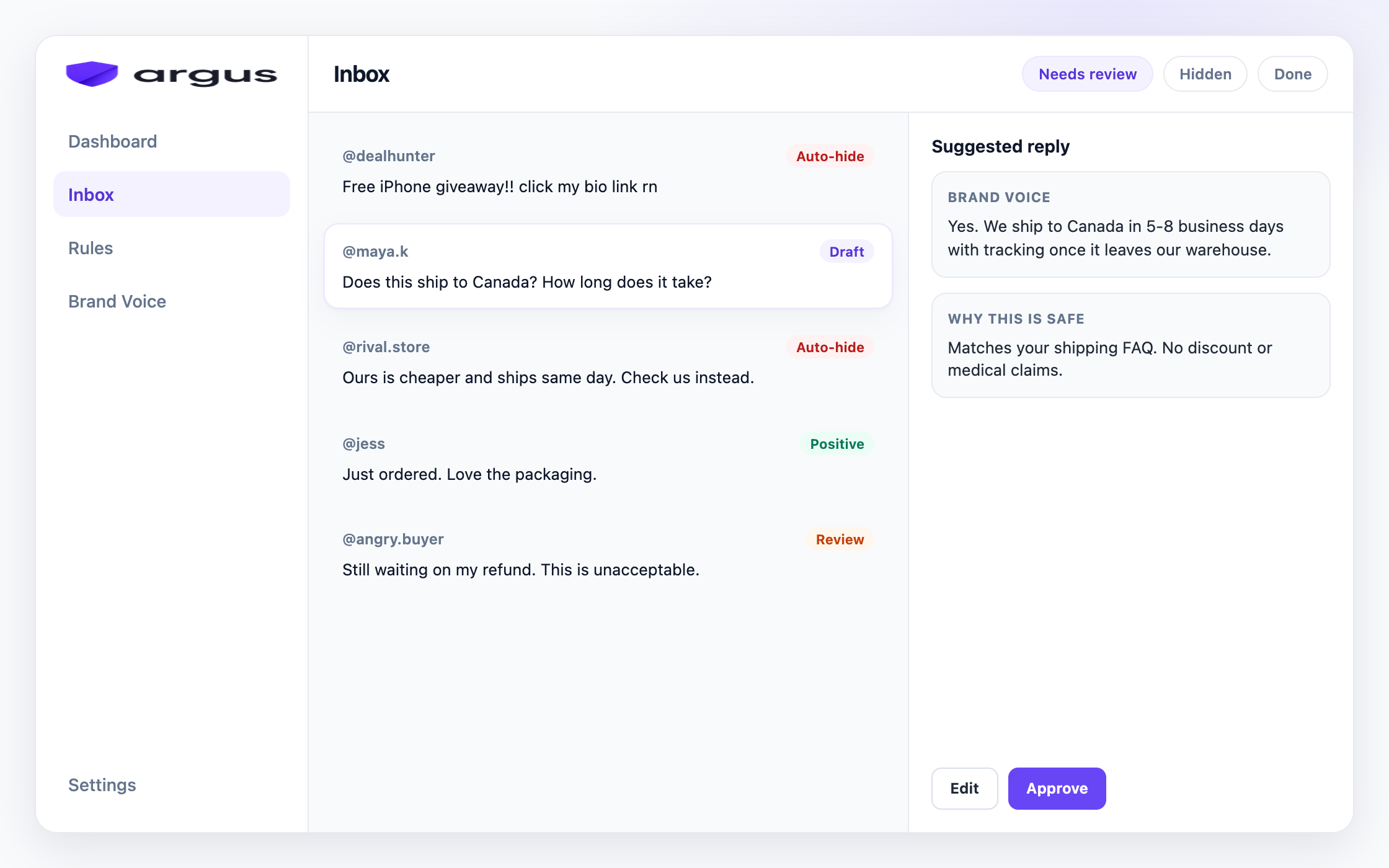
Argus watches public comments on your Facebook and Instagram ads and posts, including dark posts and creative variants, in one inbox. It sorts each comment into categories like spam, scam, toxic content, competitor bait, buyer questions, and complaints, then applies your Protection board action per category: Auto-hide, Draft for review, Reply & send, Human review, or Do nothing.
Clear junk can Auto-hide. Buyer questions get grounded reply drafts from your Brand Voice knowledge, with Draft for review as the default so nothing posts until you approve it. Safe Autopilot is a narrow opt-in for high-confidence FAQ matches only.
Argus hides from public view rather than deleting, does not automate DMs, and does not replace Meta's Page filters. Keep the native keyword and profanity filters on. Use Argus for the intent layer they cannot do.
FAQ
No. Moderation Assist hides comments on organic Page or profile posts. Meta's help states it does not hide comments on ads you run. For ads, use Page-level keyword and profanity filters, or a tool that moderates ad comments through Meta's API.
The Page-level keyword blocklist and Page profanity filter are the native controls Meta documents as applying to ads from that Page. Moderation Assist does not cover ads.
Switch into the Page that runs the ads, then open Settings, Followers and public content, and Hide comments containing certain words from your Page. Labels can vary by account. Add blocked words there, turn on the profanity filter, then confirm hides appear on a live ad thread.
Facebook automatically covers common misspellings, plurals, abbreviations, and symbol variants, but it still cannot read intent. Keyword filters miss soft competitor bait, new scam wording, and anything that never uses your blocked terms.
Yes. Native filters are free baseline protection. A classification tool covers intent, Instagram plus Facebook ad threads in one queue, and grounded reply drafts for buyer questions.
Use Page filters for exact junk. Use classification when intent matters.