1
Open Meta Business Suite
Go to business.facebook.com for the Page that runs the ads. If you manage several Pages, confirm you are in the right one first.

Use Meta Business Suite for the working queue or Ads Manager for one ad, then check variants and placements when counts still do not match.
7 min read · Published Aug 6, 2026
The honest answer
Notifications say people are commenting, but the Page feed shows nothing and the ad looks quiet. In most cases, the comments were not deleted; ad threads simply do not behave like organic Page posts. Check the paid-content views before troubleshooting permissions or connected assets.
Three design decisions cause the confusion. First, many ads run on unpublished posts that never appear in your Page feed. Second, dynamic and Advantage+ setups can create multiple creative variants with separate threads. Third, Facebook and Instagram placements use separate posts and comment sections, even when the creative is identical.
So the job is not “turn comments back on”. It is knowing where the threads actually live. There are two useful native paths, plus a scatter map for when the numbers still do not add up.
Method 1
Start here when you want a Page-level working view instead of opening ads one by one. Meta moves the labels, but Business Suite keeps paid comments separate from the default organic-content view.
Go to business.facebook.com for the Page that runs the ads. If you manage several Pages, confirm you are in the right one first.
In many layouts, select Inbox and open Ads or Ad comments. If that tab is missing, check Content, then Ads. Meta changes the navigation, so follow the paid-content label rather than the default Posts view.
Use the available unread, platform, and status filters, then open a comment to reply or hide. Do not assume the first screen includes every older thread or creative variant.
Use the general Comments or Posts view when you are not sure whether the thread came from organic content or a boosted post. Return to the paid-content view for ads created directly in Ads Manager.
One catch: the Inbox only shows comments from business assets connected to that Business Suite. If an ad account or Instagram profile is not properly linked, its comments will not appear here, which is itself a common cause of “missing” comments.
Method 2
When you want one specific ad's thread, especially an unpublished post, go through Ads Manager. It is the most direct path to a post that never appeared on your Page feed.
Select your campaign, then drill to the individual Ads tab. The preview you need lives at the ad level, not the campaign or ad set level.
Select the ad and open its preview (the preview icon or the ad review dropdown, depending on your account's layout).
Look for an option like View post with comments or View post permalink with comments (wording varies by objective and account). Pick the Facebook or Instagram version as needed.
The ad's live post opens with its full comment section. From here you can reply, like, hide, or report, same as any post.
Repeat per variant. With dynamic or Advantage+ creative, each variant has its own thread, so a comment count that does not match what you see usually means you are looking at one variant of several. The Meta Ads Manager mobile app exposes the same per-ad comments view if you are checking on the go.
The scatter map
Dark posts never touch your Page feed. An ad created in Ads Manager (not boosted from an existing post) lives on an unpublished post. Its comments exist only on that ad. Your Page feed will never show them, no matter how far you scroll.
Creative variants can have separate threads. Dynamic creative and Advantage+ setups can split delivery across variants, and comments attach to the version a viewer saw. A total comment metric can therefore be larger than the thread opened from one preview.
Facebook and Instagram are separate rooms. The same ad on both platforms has two comment sections that never merge. Checking the Facebook thread tells you nothing about the Instagram one.
Some placements have no comments at all. Audience Network and some non-feed placements do not support public comments. Delivery there produces zero comments by design, not by error.
Disconnected assets look like silence. If an Instagram profile or ad account is not connected to your Business Suite, its comments simply do not surface in your Inbox. The thread exists; your view of it does not.
Reality check
Once advertisers find the threads, the same handful of stories comes out. If any of these sound familiar, you are in the majority.
“I thought nobody was commenting on my ads.” The comments may be on unpublished posts and variants that were never opened. A complete first check can reveal an older queue that the Page feed never showed.
“The comment count does not match what I see.” You are looking at one variant or one platform. Add up the variants and both platforms before concluding the number is wrong.
“I found forty unanswered buyer questions from last month.” The painful version of this discovery. Answer the ones that are still warm, accept the ones that went cold, and fix the system so there is no third month of backlog.
“My teammate checked and said the thread was clean.” They checked a different variant, a different platform, or the Page feed. Without one shared queue, everyone audits a different slice of reality.
“By the time I found the question, they had bought elsewhere.” Buyer questions cool off in hours. Finding comments weekly means answering last week's intent, which is nearly the same as not answering.
Decision guide
If you just need a one-off check: the Business Suite Inbox Ads tab plus the Ads Manager preview path are enough. Bookmark them and you are done.
If you run a few ads at a time: make the Inbox Ads tab a twice-daily habit, and sweep per-ad previews weekly to catch variant threads the feed misses.
If you are scaling spend or testing creatives constantly: manual hunting will not keep up as new unpublished posts and variants create more threads to find. That is the case for one queue that sorts the live connected comments it receives.
How Argus fits
Meta's native paths are enough for a one-off check. The operational problem begins when live comments keep arriving across the connected ad threads your team manages.
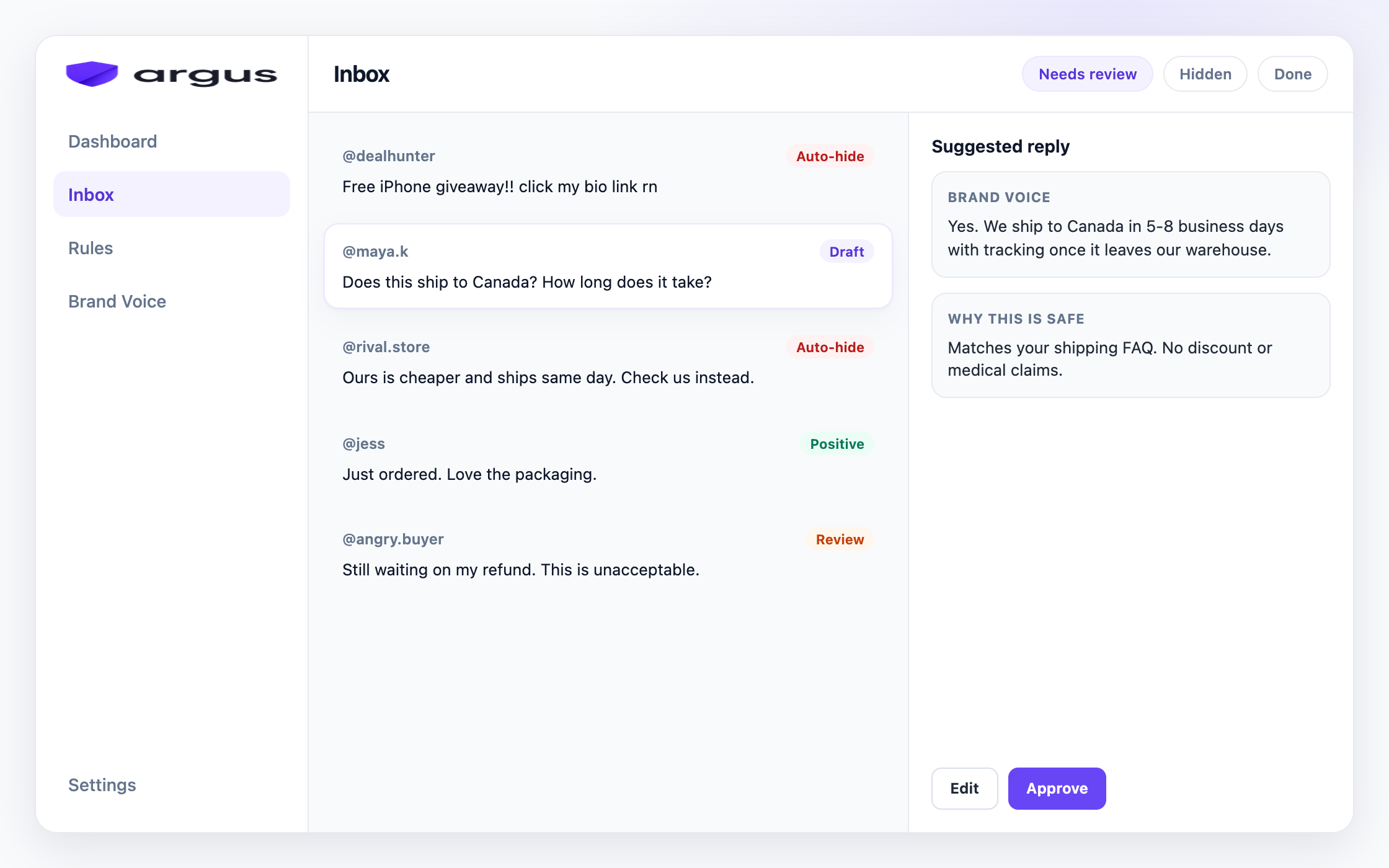
Argus connects to Facebook Pages and Instagram professional accounts through Meta's official flow. When live ad comments from connected assets reach Argus, they appear in one Inbox instead of becoming another per-ad tab for the team to remember.
Incoming comments are classified as spam, scams, toxic content, competitor bait, buyer questions, or complaints. Clear junk can route to Auto-hide, buyer questions can get grounded drafts, and sensitive cases can wait in Human review. Draft for review is the default. Reply & send and Safe Autopilot remain explicit opt-ins.
Argus covers public Facebook and Instagram ad comments, hides from public view rather than deleting, and does not automate DMs. Meta Business Suite and Ads Manager remain the source of truth when you need to locate a specific native post or audit a thread Argus has not received.
FAQ
The ad may run on an unpublished post that never appears on your Page feed. In Meta Business Suite, check the paid-comments view under Inbox or Content. For one ad, open its post with comments from the Ads Manager preview.
For one ad, open Meta Ads Manager at the Ads level, select the ad, open Preview, then choose Facebook post with comments or View post permalink with comments. For a Page-level queue, use the paid-comments view in Meta Business Suite under Inbox or Content.
Yes. A dark post is a real post with a real comment section; it is simply unpublished on your Page feed, so you can only reach its comments through Ads Manager's ad preview or the Business Suite Inbox.
No. The same ad running on both platforms has two separate comment sections. You need to check each platform's thread, or use a view that aggregates both.
You are usually looking at one creative variant or one platform. Dynamic and Advantage+ ads split comments across variants, and Facebook and Instagram threads are separate. Add them up before assuming comments are missing.
Page notifications cover some comment activity, but they are easy to miss at volume. The dependable checks are the paid-comments view in Business Suite, the Ads Manager preview for a specific ad, or a connected moderation inbox for live comments it receives.
One inbox for live Facebook and Instagram ad comments that reach your connected workspace.